ABB
AvailableIRC5 and OmniCore backups. RAPID editing, the virtual pendant and live editing on the controller.
- RAPID
- RobotWare 6
- OmniCore
Find robot collisions and interlock gaps before the line does. Edit ABB, FANUC and Rockwell logic in one window, with Cellwrite AI built in.
Free for 14 days, then £50 per user per month. Founder price £40 for our first 100 engineers.
One tool for every robot
Every robot brand comes with its own software, its own licence and its own way of working. Cellwrite Studio opens them side by side and checks them with the same care. On ABB it also connects to the controller live, with FANUC to follow.
IRC5 and OmniCore backups. RAPID editing, the virtual pendant and live editing on the controller.
R-30iA, R-30iB and R-30iB Plus backups. TP programs and listings in the same editor. Live connection coming soon.
Studio 5000 projects exported as L5X. Ladder viewing, editing and simulation.
KRL programs and KRC controllers, in the same editor as the rest of the cell.
Everything in one window
Built by robot commissioning engineers with years on automotive body lines.
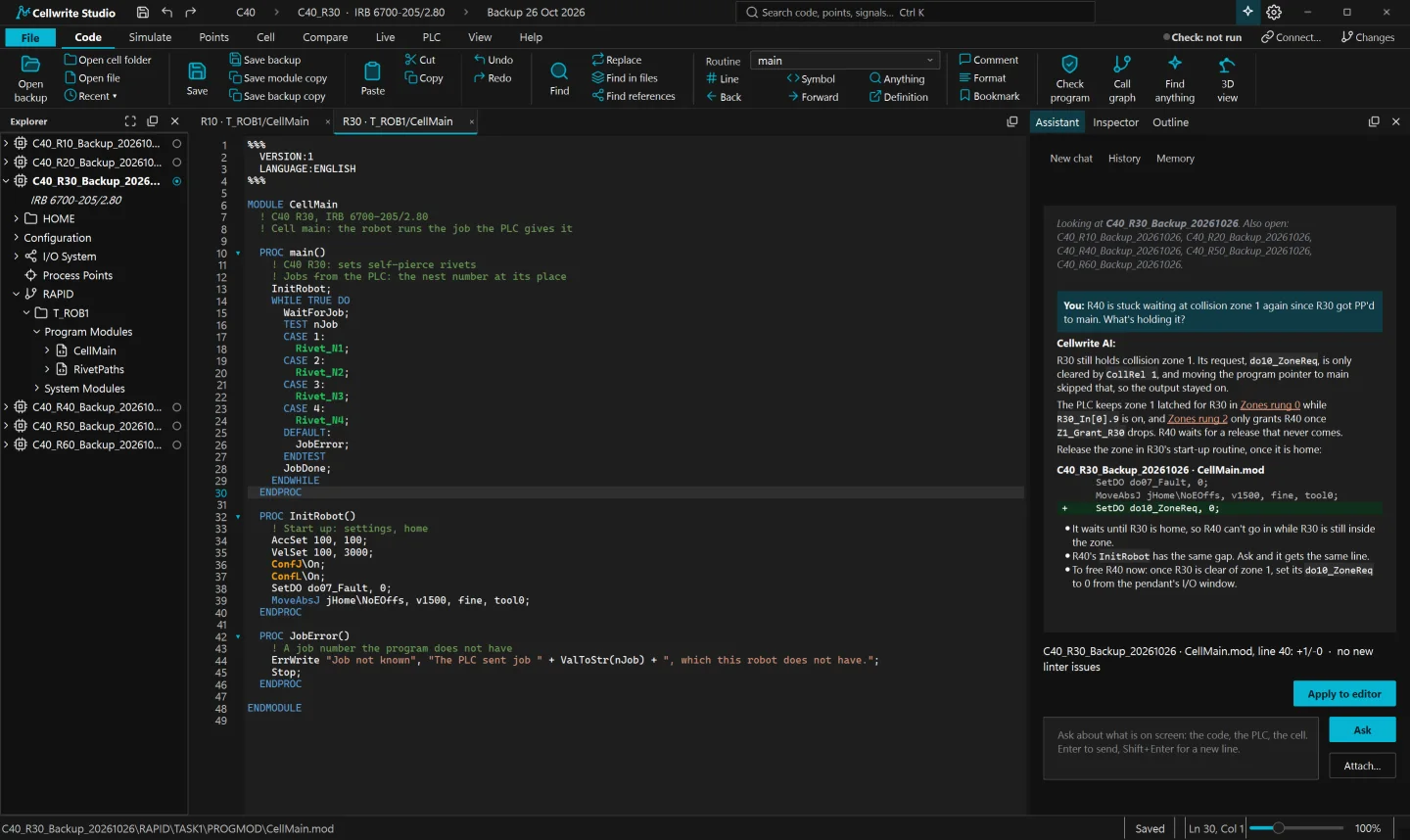
Ask about robots and PLC together and get the exact lines to change.
The faults that would stop a program loading, flagged as you type.
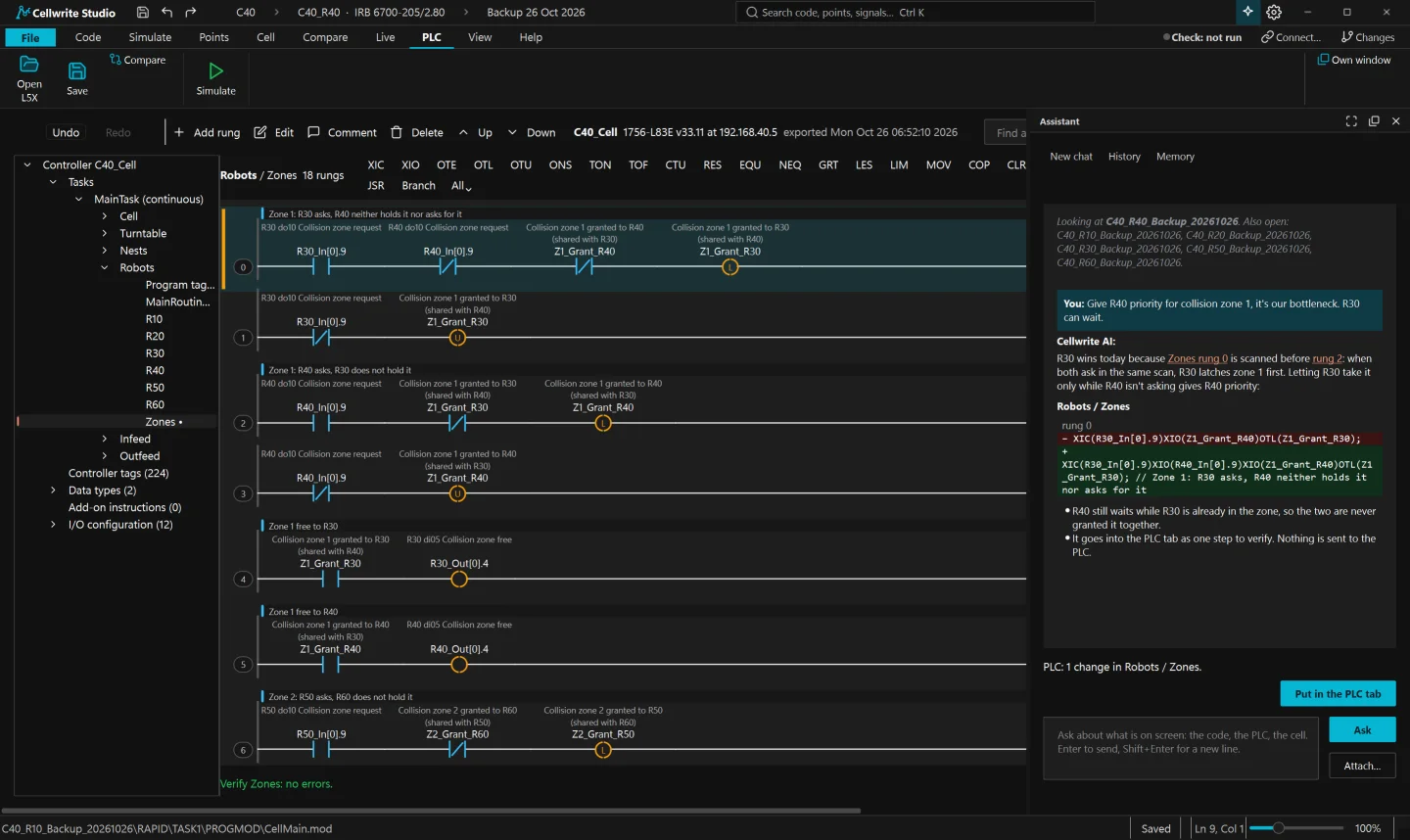
From a robot signal to the rung that drives it.
Two robots' programs swept against each other, move by move.
Which zones are free, single robot or shared.
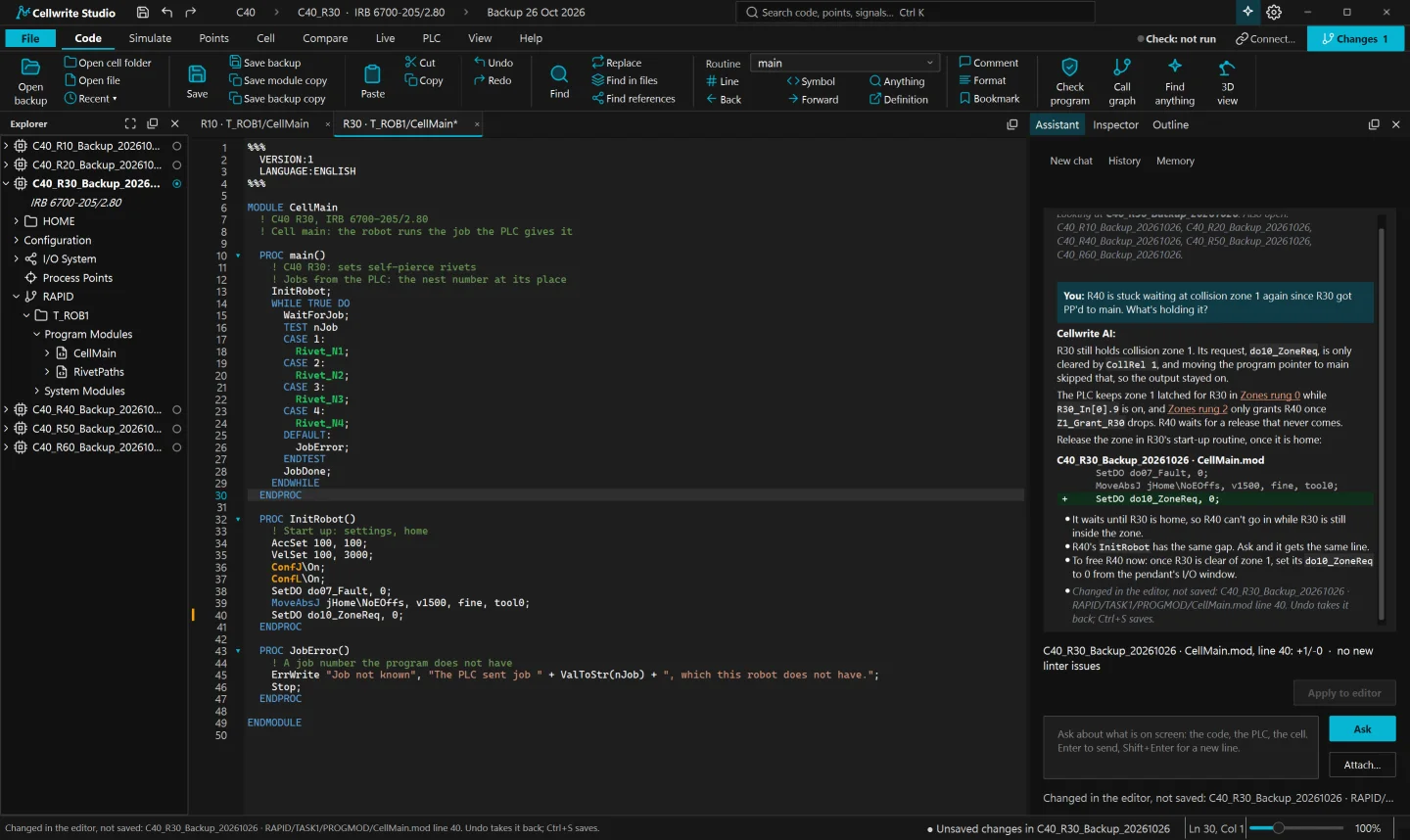
Write access granted on the robot, a backup taken when you connect and the program re-read before every apply. Undo in one step.
Cellwrite AI
Cellwrite AI knows robot programs, PLC logic and how a cell fits together. Ask the way you would ask a colleague, and it answers with the exact lines or rungs to change.
Cellwrite AI is included in your subscription. There is no separate AI account to set up.
Robot-native editor
Syntax colouring is the easy part. Cellwrite Studio understands RAPID and FANUC TP the way the controller does: it flags what would stop a program loading, follows every call and shows each point on the robot in 3D.
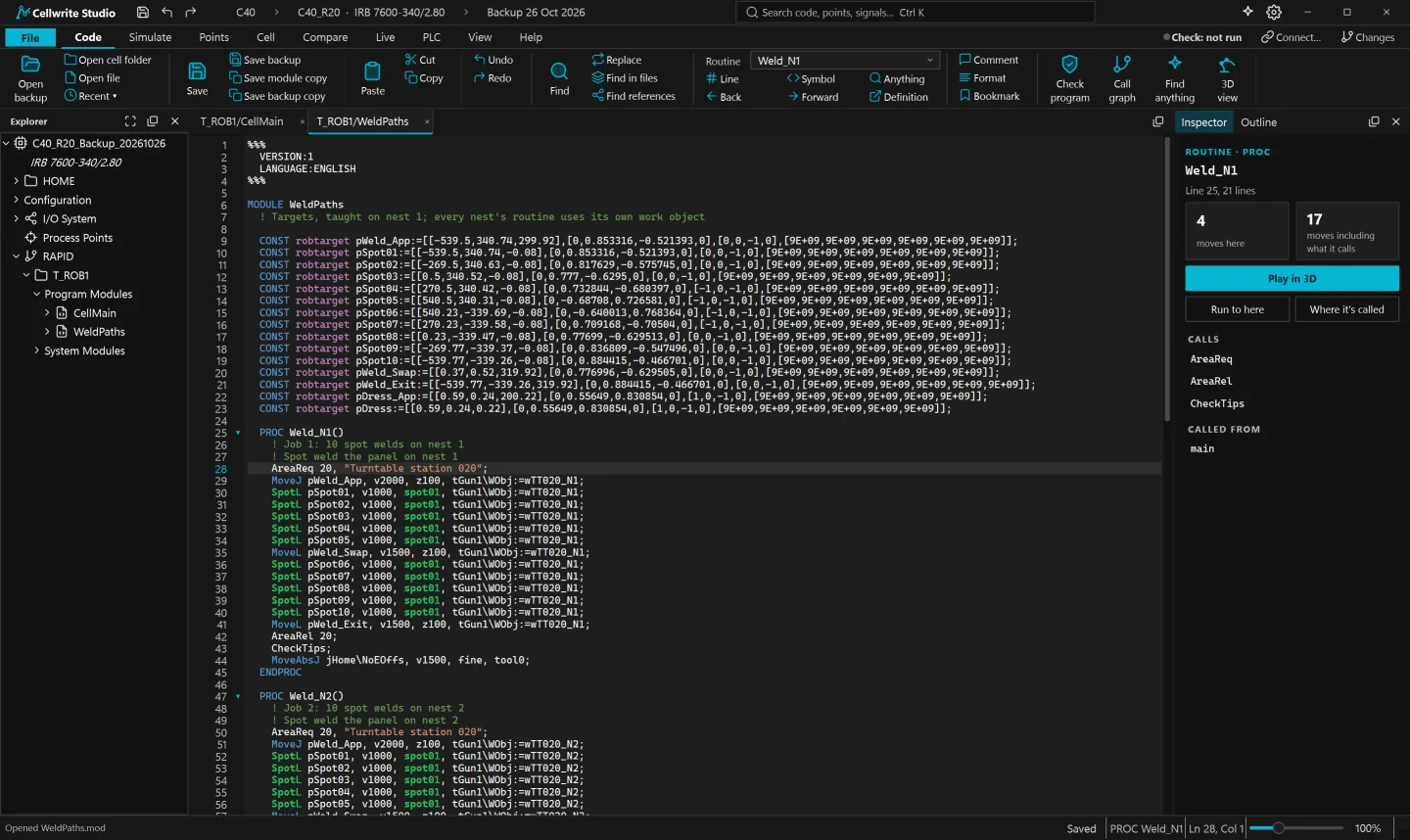
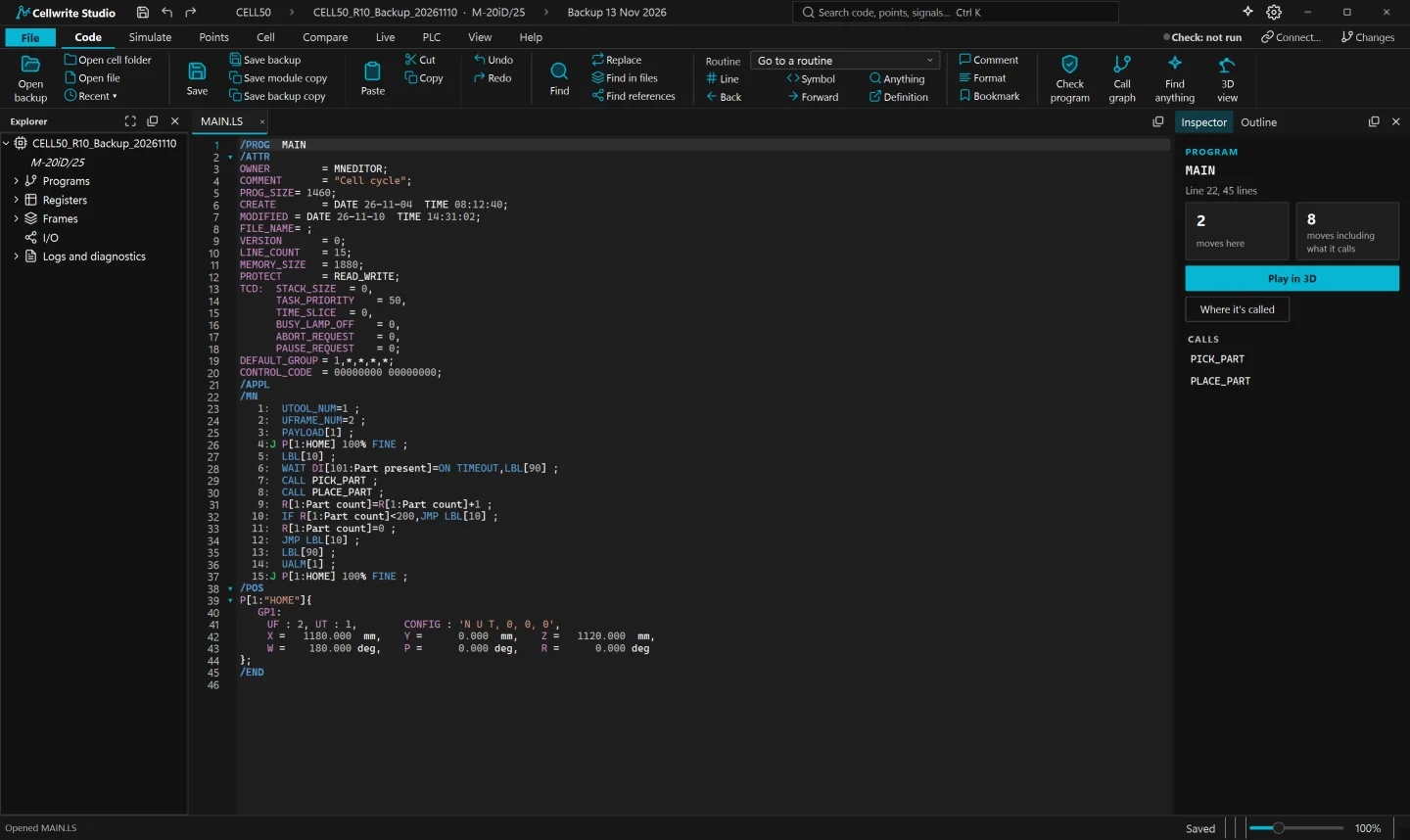
Unknown names, wrong argument types and the faults a controller refuses to load, marked as you type.
Go to definition, find references and search every robot in the cell at once.
Inspect positions, apply offsets, calibrate from measurements and export to Excel.
Step through a program on a virtual teach pendant with the robot moving in 3D.
Column selection with Alt+drag, pasted into Excel one row per line.
Programs with errors still save, with every problem listed so nothing is hidden.
PLC editing
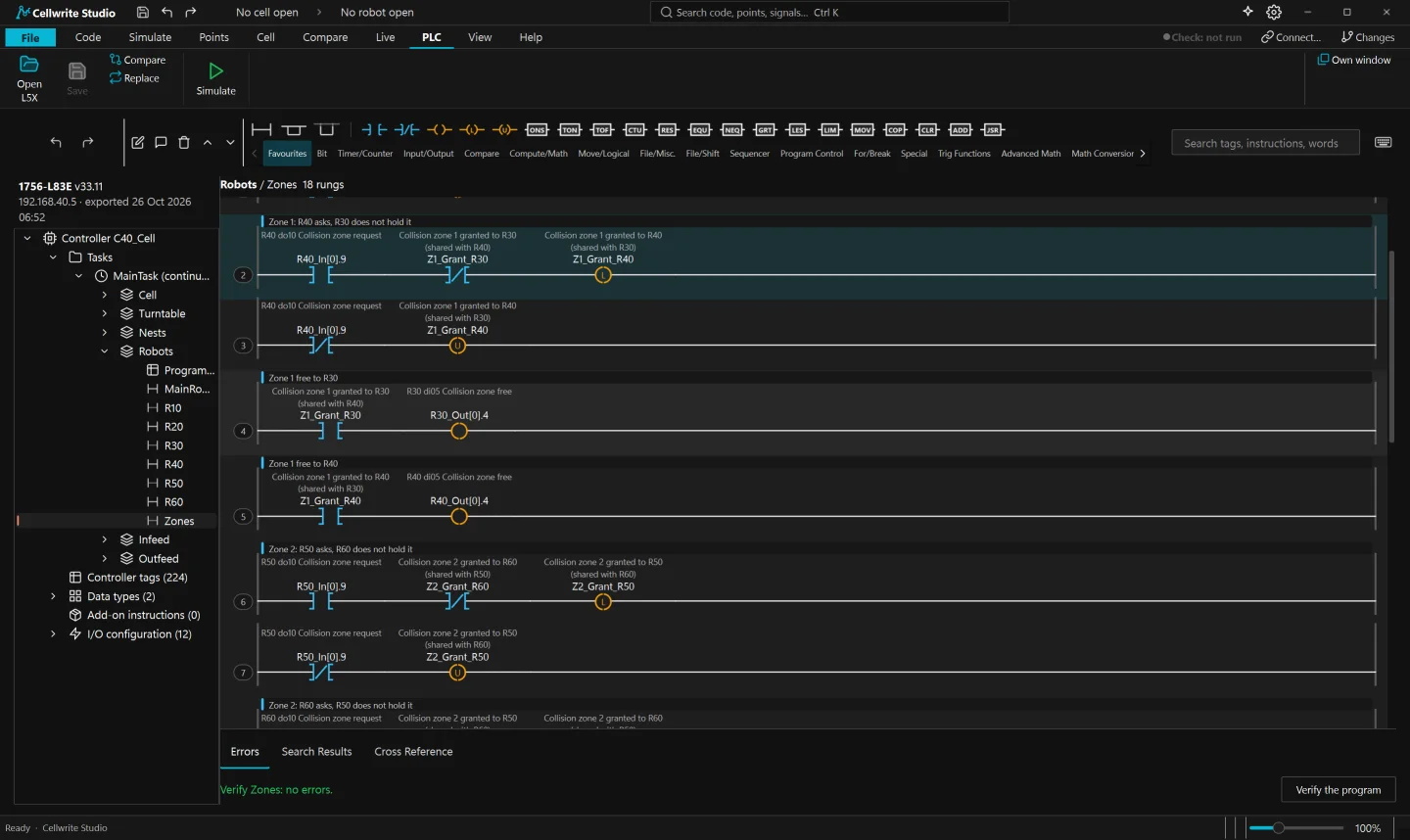
Open the cell's Rockwell Studio 5000 project as L5X and follow a robot signal straight to the rung that drives it, without leaving the robot programs.
Robot interference
Pick two robots and Cellwrite Studio sweeps their programs against each other, move by move. Every place they could meet is listed with the lines responsible and how close they come, and any clash opens in 3D at that exact moment.
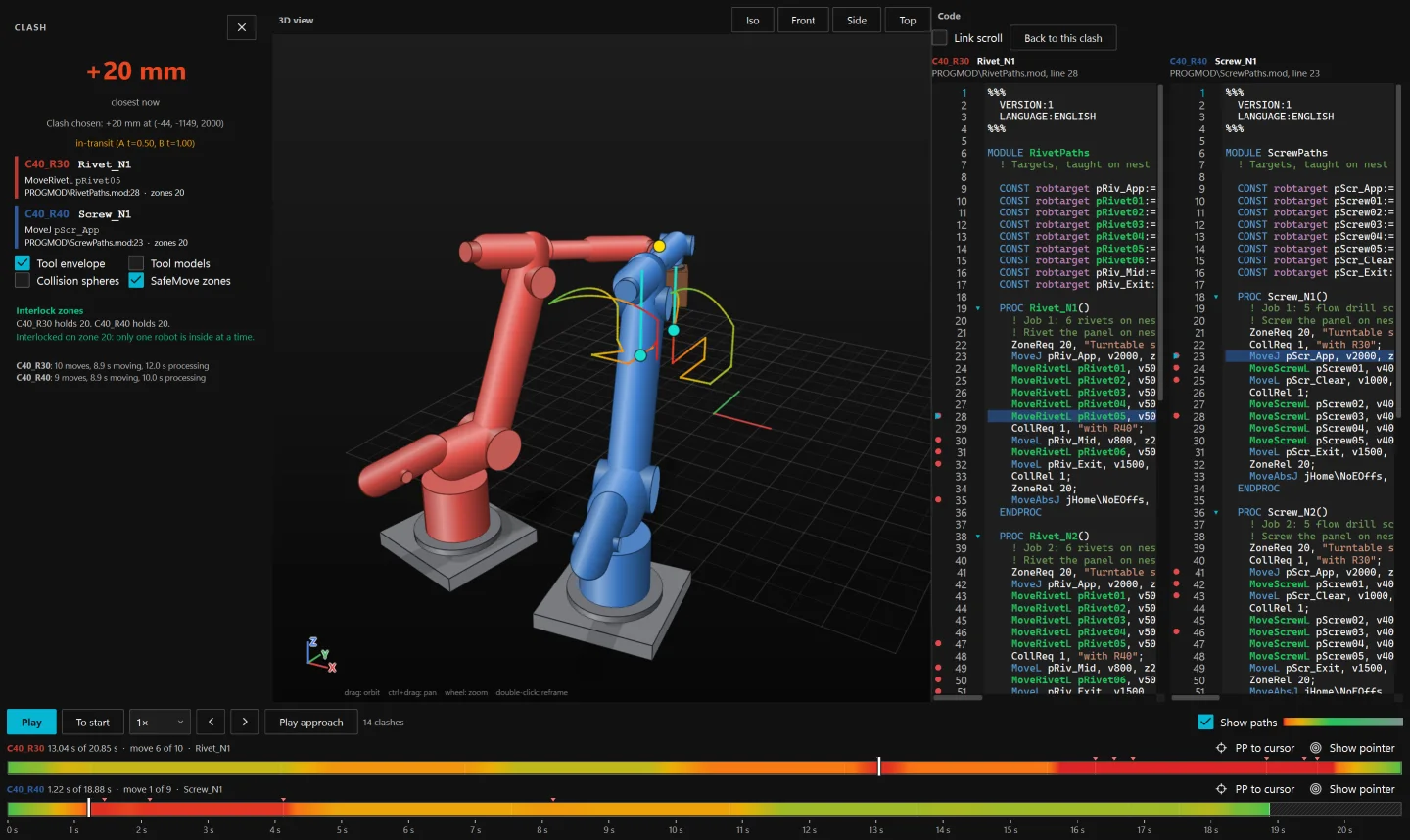
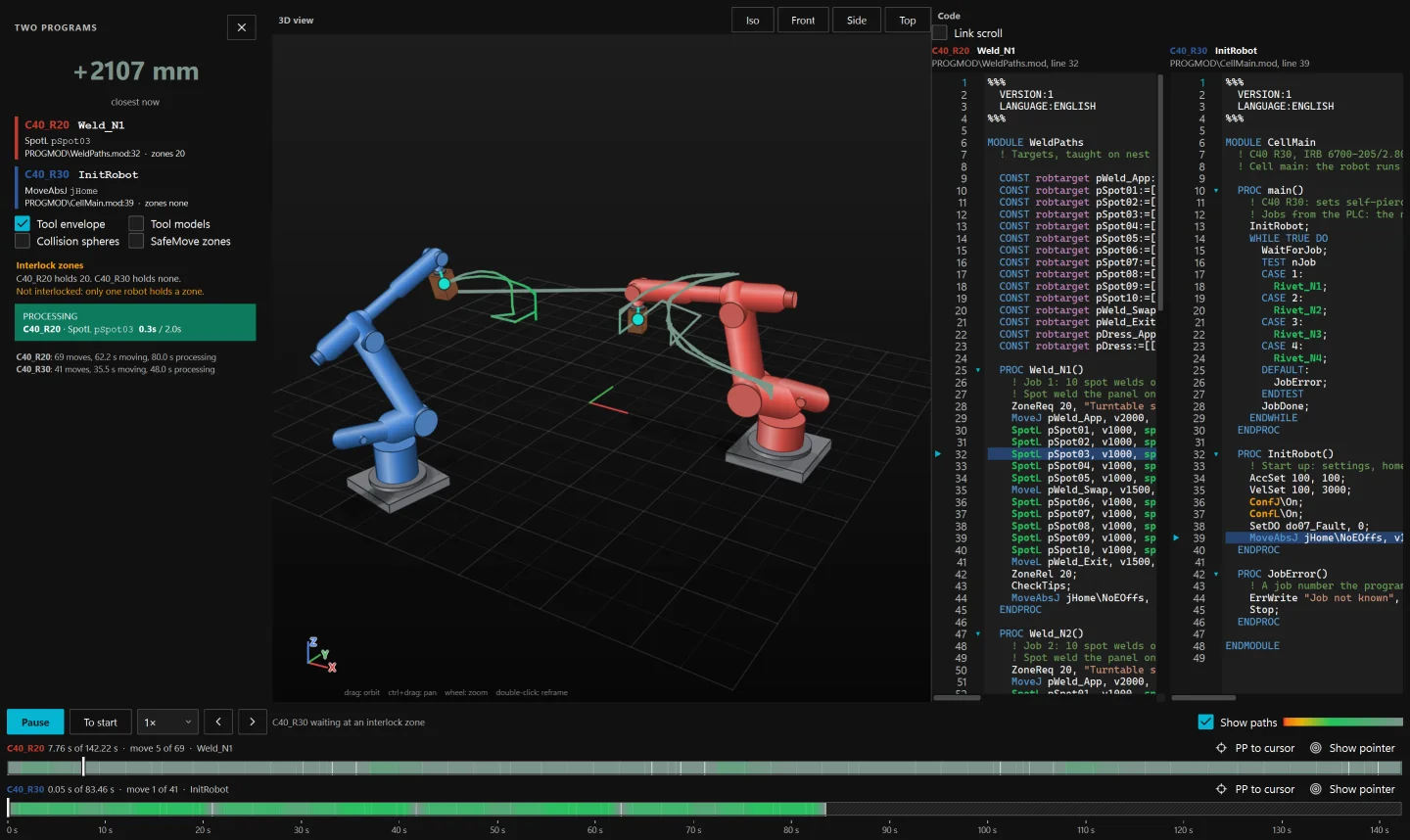
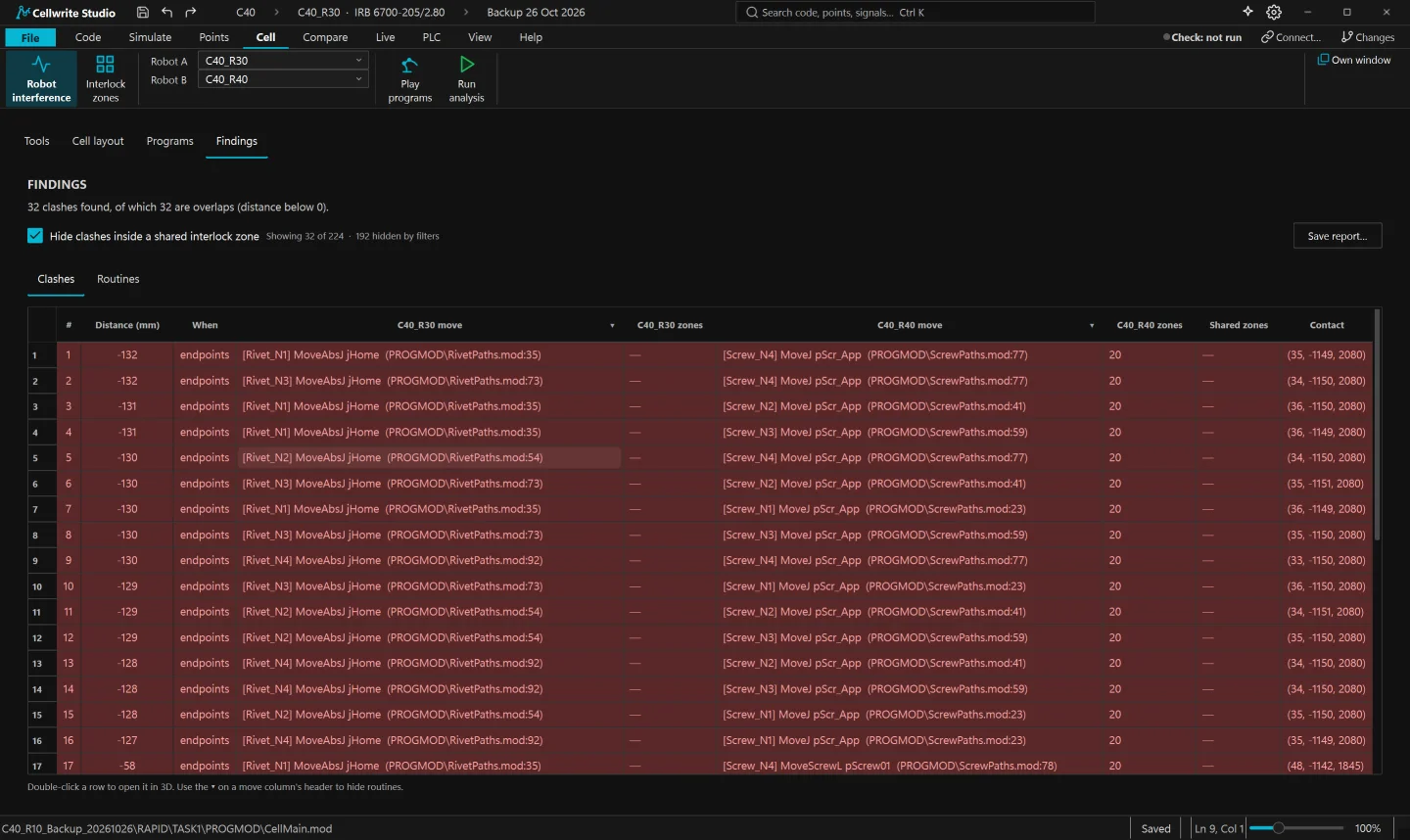
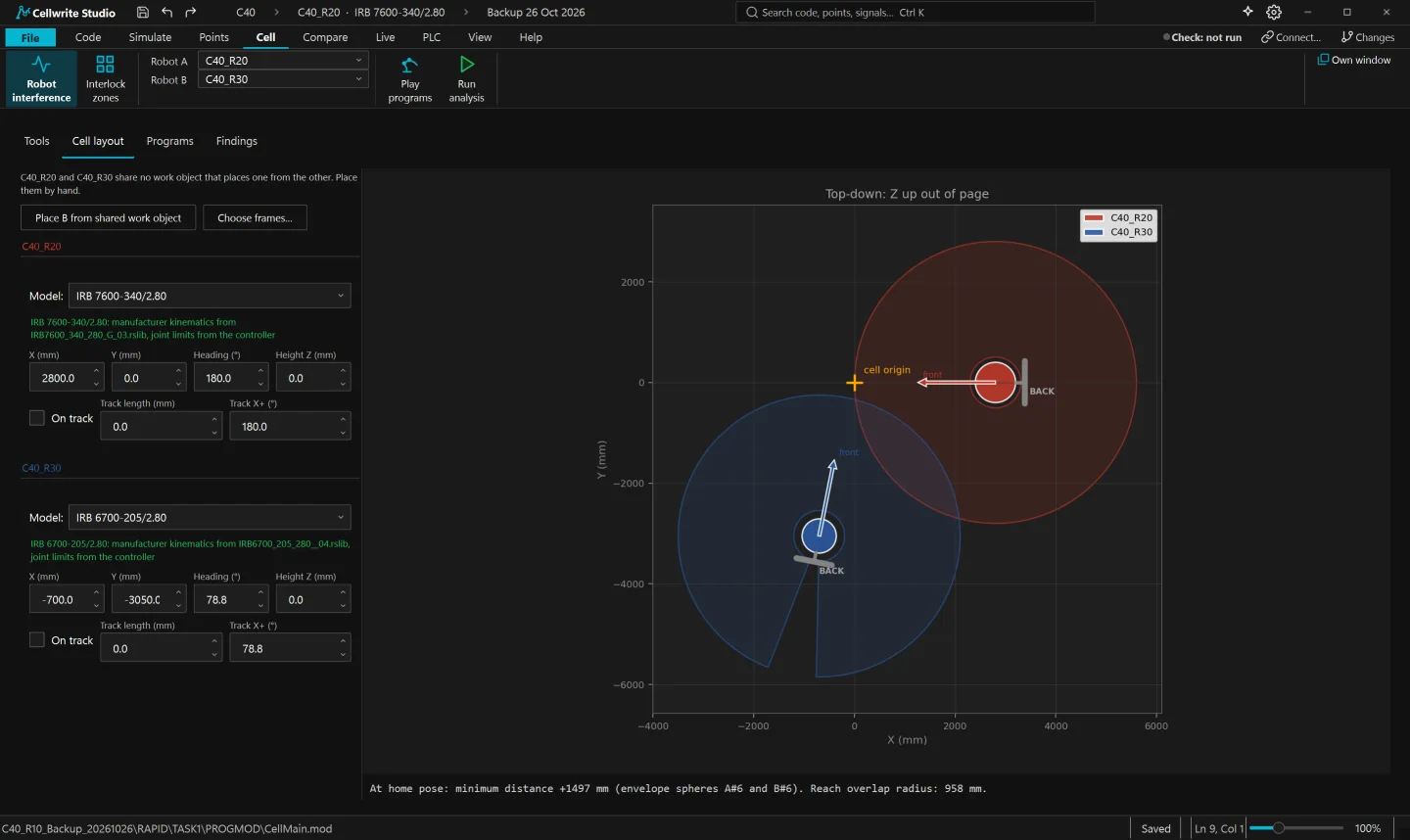
Both programs run at their programmed speeds, waiting for each other at interlocks as the robots do.
Near misses covered by a shared interlock zone are marked, so open risks stand out.
Tool models and the robot's own safety configuration drawn at every pose.
Interlock zones
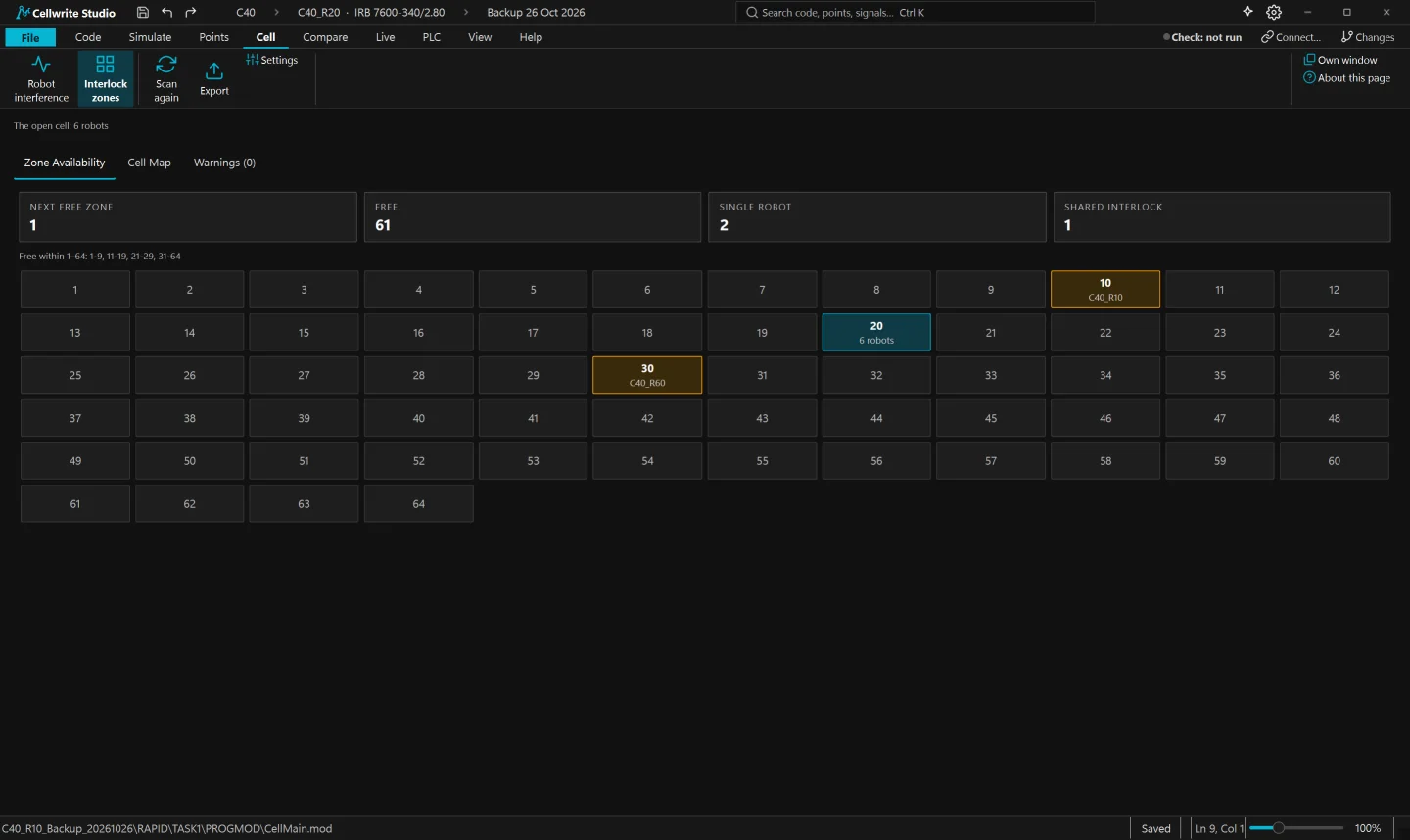
Cellwrite Studio reads each robot's zone requests and releases and maps them across the cell: which zones are free, which belong to one robot and which are shared and must be interlocked.
Compare backups
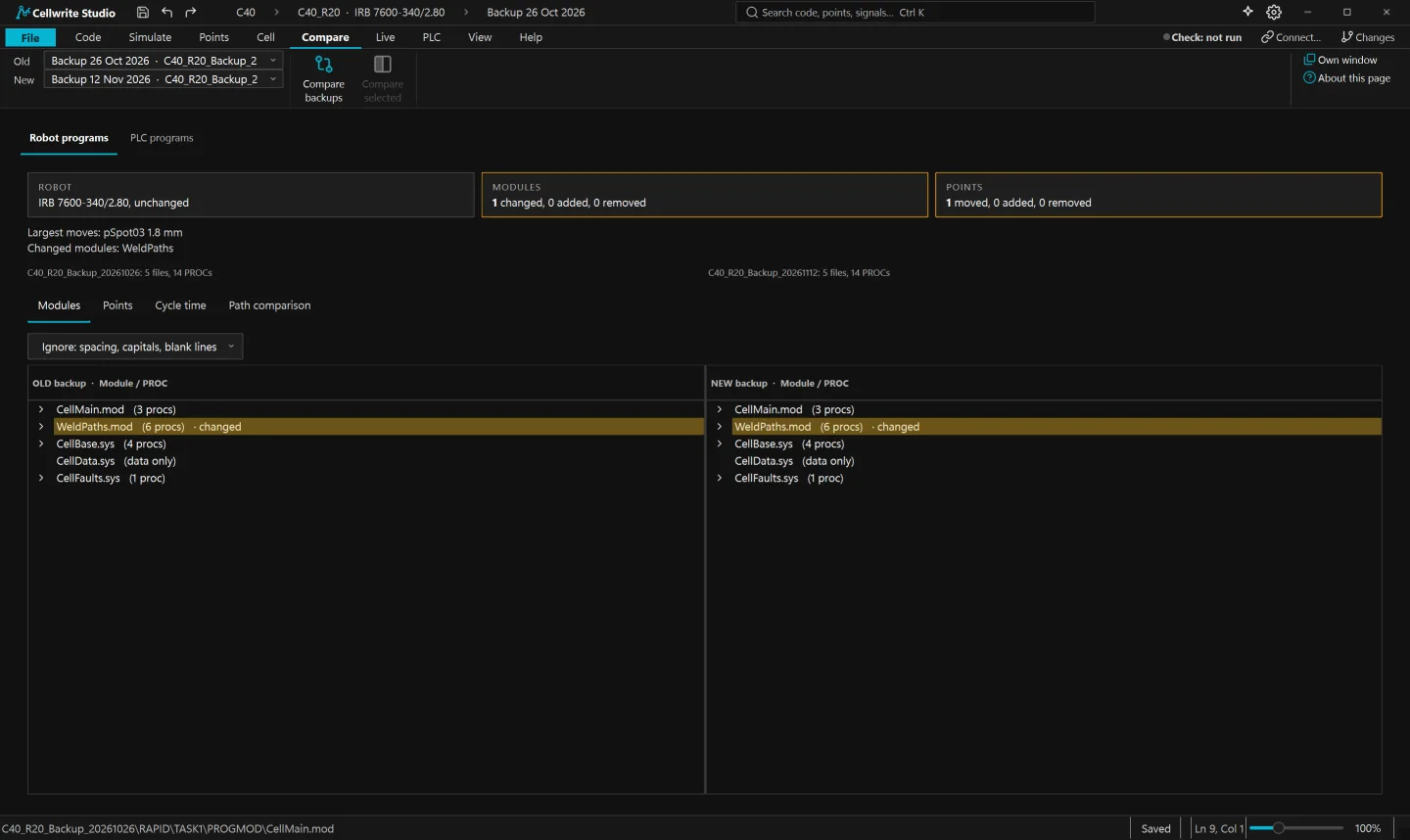
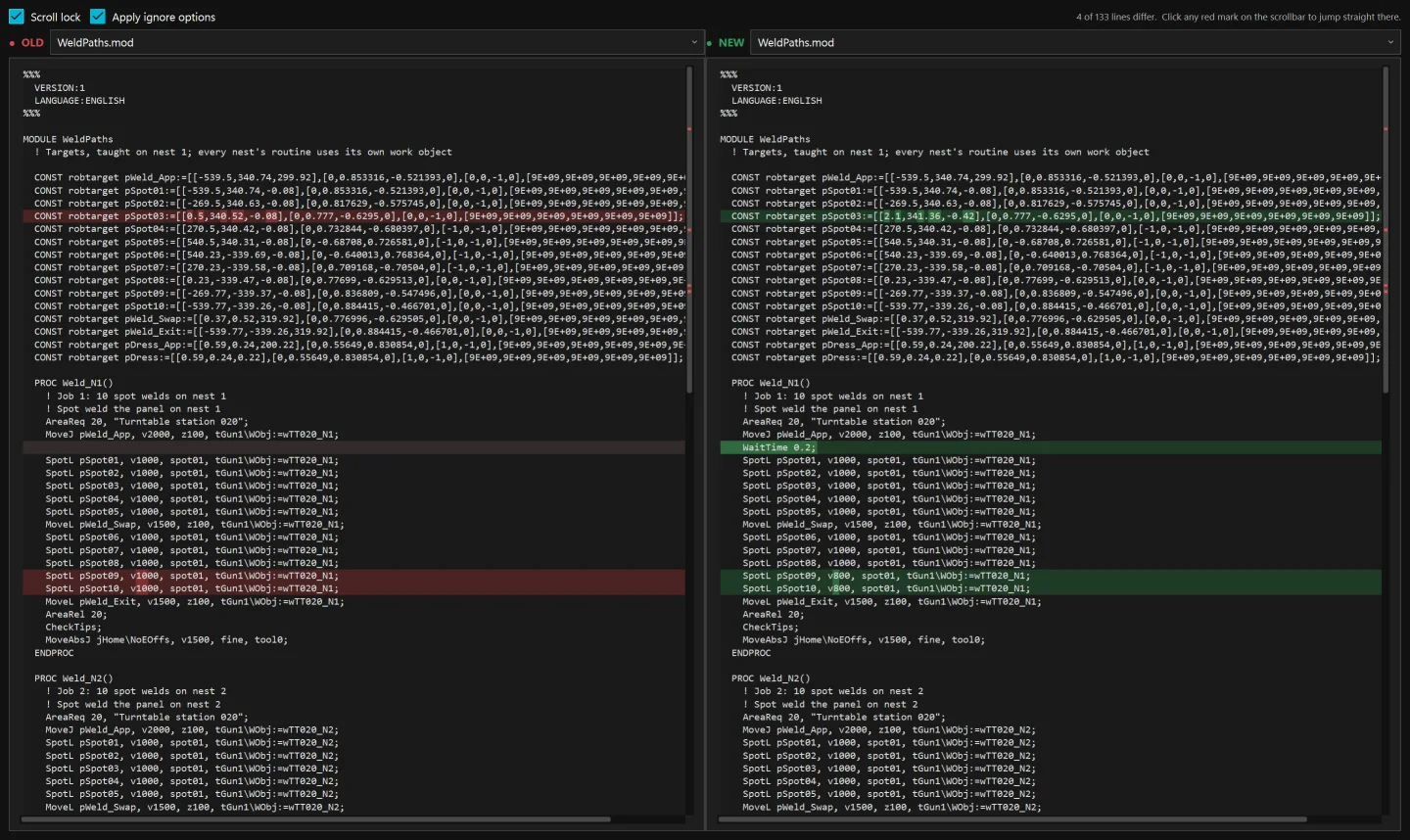
Put last week's backup beside today's. Modules are paired automatically, changed lines are shown side by side and re-taught points are measured, so a 1.8 mm touch-up stands apart from an accidental edit.
Live connection
Connect to ABB controllers over your network and edit the program the robot holds. Nothing can be written until write access is granted on the robot, and every apply goes through the same checks.
Changes to a live robot should always follow your site's safety procedures.
Find the controllers on your network. Connecting copies a full backup of each robot to your PC before you change anything.
Nothing is written until write access is granted on the robot's pendant or controller.
The robot's copy is read again first, so a change made on the pendant is never overwritten without you seeing it.
Undo last apply puts back exactly what the last apply replaced. Back up robot also saves a backup on the controller, named as the pendant names it.
The tour
A walk around Cellwrite Studio, from the editor and Cellwrite AI to the collision checker.
Compatibility
What Cellwrite Studio opens today, and what it connects to live.
| Controller | Software | Backups and editing | Live connection |
|---|---|---|---|
| ABB IRC5 | RobotWare 6 [TODO: versions] | Yes | Yes |
| ABB OmniCore | RobotWare 7 [TODO: versions] | Yes | [TODO: confirm] |
| FANUC R-30iA | [TODO: versions] | Yes | Coming soon |
| FANUC R-30iB | [TODO: versions] | Yes | Coming soon |
| FANUC R-30iB Plus | [TODO: versions] | Yes | Coming soon |
| Rockwell PLC | Studio 5000, L5X export [TODO: versions] | Yes, offline | Nothing is ever written to a PLC |
| KUKA KRC | To be announced | In development | In development |
Security & data
What stays on your computer, what is sent when you use Cellwrite AI, and where it goes.
Robot programs, backups and PLC projects are opened and kept on your computer. Crash reports are off unless you turn them on.
Only when you ask it a question: the parts of your programs it needs to answer, sent through Cellwrite's AI service to our AI provider.
Your questions and the code sent with them are not used to train AI models.
Cellwrite Studio talks to controllers directly over your local network. Live traffic never passes through Cellwrite's servers.
This site runs no analytics or advertising trackers. The only cookies are set when you sign in, to keep you signed in.
The full detail is in the privacy notice.
From the beta
[TODO: quote]
[TODO: quote]
[TODO: quote]
Pricing
One price per engineer, Cellwrite AI included. No add-ons and no per-robot fees.
Founder price£40 per user per month, locked in, for our first 100 engineers.
For engineers who look after robots.
Billed monthly. The price you see is the price you pay.
Billed yearly, 2 months free. The price you see is the price you pay.
Start your 14-day free trialNo commitment. Cancel any time.
Cancel any time; the year you paid for runs to its end.
For whole teams, sites and integrators.
Volume pricing, quoted for your team.
Contact salesPaid by invoice. Purchase orders welcome.
Services
Beyond Cellwrite Studio, we build software to order for individual cells, lines and sites. Available on request.
Software made for your cells and your process: program checks against your own standards, reports from your robots and PLCs, tools for commissioning and custom operator screens.
Interfaces between robots of different brands, and between robots and the equipment around them: PLCs, vision systems, welding and sealing equipment, tool changers and conveyors.
Tell us what you need, and we will come back with a plan and a quote.
Discuss a projectContact
Licences for a team or a whole site, bespoke software or a robot interface. Tell us a little about it and we will reply by email.
Or email enquiries@cellwrite.co.uk
Questions
Something else? Email support@cellwrite.co.uk.
Backups from ABB IRC5 and OmniCore controllers and from FANUC R-30iA, R-30iB and R-30iB Plus controllers. Live connection and editing work on ABB robots today, and FANUC live connection is coming soon. Rockwell PLC projects open as Studio 5000 L5X exports. KUKA support is in development. The supported controllers table lists each one.
No. Nothing is written to a controller until write access has been granted on the robot's pendant or controller and you press Apply. Before applying, Cellwrite Studio reads the robot again, so a change made on the pendant is never overwritten without you seeing it, and Undo last apply puts back what the apply replaced. Live changes should always follow your site's safety procedures.
Yes. Cellwrite AI is part of the subscription, with no separate AI account to set up. A fair-use limit keeps it quick for everyone.
Your programs stay on your computer. Only when you ask Cellwrite AI a question is the part of the cell it needs sent through Cellwrite's AI service to answer it. It is not used to train AI models. Security & data has the detail.
Yes. Editing, checking, comparing, collision checking and simulation all run on your computer. Cellwrite AI and live connections need a network.
Create an account and start the Professional plan with a 14-day free trial through Stripe's secure checkout. Cancel before the trial ends and you pay nothing. After the trial it is £50 per user per month or £500 per user per year, or £40 per user per month at the founder price for our first 100 engineers.
Yes. Your account holds your subscription and your licence, and the same account signs you in to Cellwrite Studio, through your browser.
No VAT is added. The price shown is the price you pay.
Yes. Teams and whole sites get volume pricing, invoiced billing and onboarding. Tell us how many engineers and we will send a quote.
Yes. Bespoke software and interfaces between robot brands and equipment are available on request. Tell us what you need through the contact form.
A Windows 10 or Windows 11 PC (64-bit). A graphics card helps the 3D views; without one they still draw in software.
Try Cellwrite Studio free for 14 days.